Courses
ToolsFree

Git & GitHub Mastery

From first commit to confident collaboration — snapshots, branching, PRs, hooks and disaster recovery

4 modules8 lessons1 hr 30 minBeginner
Beginner
8 lessons in 4 modules
1h 30m of material
8 challenges
English audio
English captions
Certificate on completion

What you'll get

  • Verifiable certificate

  • XP on the leaderboard

Your certificate

TTieEduCertificate of Completionawarded toyour nameGit & GitHub MasteryFoundation Tier

Preview of the certificate this course issues. Yours will carry your name, score and a verifiable serial — signed, not editable.

What you will build

Team repository simulation

Create a repo with a README and LICENSE, develop a feature on a branch, open a PR-style commit history, merge, tag v1.0.0, then deliberately break main and recover it with reflog or revert. Submit the final git log --graph output and a short write-up of each recovery step.

You will submit: Link to your public GitHub repo plus a short write-up (markdown or PDF) covering: commit history, the merge, the tag, and the recovery drill with the exact commands used.

Repository, Staging and Commits

init, status, add, commit — and why Git has a staging area at all.

What you will learn
  • Explain the working tree, staging area and repository as three places
  • Initialize a repo, stage changes selectively and create clear commits
  • Read git status and git log and interpret what they tell you

Git is not a backup button. It is a snapshot machine: you choose what goes into the next snapshot (staging), then freeze it with a message (commit). Once that model clicks, add/commit/status stop feeling random.

Three places:

  1. Working tree — the files you edit on disk.
  2. Staging area (index) — the shortlist of changes for the next commit.
  3. Repository (.git) — permanent history of committed snapshots.

Daily loop: edit → git status → git add (stage) → git commit → (optionally) git push later.

Why staging? You can commit only the related half of a messy working session. Stage file A, leave file B unstaged, commit a clean unit of work.

Commit messages: subject line under ~72 characters, imperative mood ("Add login form", not "Added"). Body explains why when the why is not obvious.

git status answers: what changed, what is staged, what is untracked. Learn to read the three sections.

History: git log --oneline --graph for a compact view; git show for one commit's diff.

Status sections
Status saysMeaning
Changes not stagedEdited but not added yet
Changes to be committedStaged for next commit
Untracked filesGit has never seen them
Commit often, push deliberately

Small commits are reviewable; history is free. Pushing is a separate social/sync decision.

Never commit secrets

API keys, .env files and tokens must stay out of history — once pushed, treat them as leaked and rotate.

First repository with a real commit
Create a project folder, make an initial commit, then add a second feature file as a separate commit.
  1. 1

    Step 1 - create and init

    mkdir demo && cd demo && git init.

  2. 2

    Step 2 - first file

    Create README.md. git status shows it as untracked.

  3. 3

    Step 3 - stage and commit

    git add README.md && git commit -m "Add project README".

  4. 4

    Step 4 - second commit

    Create app.py, then git add app.py && git commit -m "Add entry script".

  5. 5

    Step 5 - verify history

    git log --oneline shows two commits.

Solution

Two clean commits with readable messages; status clean between them.

Selective staging

Edit two files, stage only one, commit, then inspect git status for the other.

Hint: git add path/to/one.txt — not git add . for this drill.

Common mistakes
  • git add . blindly every time

    Stages junk, secrets and half-done files. Stage paths you mean to ship.

  • Vague commit messages like "fix" or "update"

    Future you and reviewers need the what/why; use imperative subjects.

Exam / interview angle

What is the staging area for?

It selects which working-tree changes go into the next commit.

Source: Most common Git interview opener.

Lesson summary
  • Working tree → staging → commit snapshot.
  • Stage selectively; commit small with clear messages.
  • Status and log are your map at all times.
Semester exam prep

Campus placement Git rounds, open-source onboarding, lab vivas

Units, important questions and previous-year papers — revisit before every exam.

1

Snapshots & History

Three areas: working tree, index, repository. Daily loop: edit → status → add → commit. restore undoes files; reset --soft/--mixed/--hard differ in what they keep. reflog tracks where HEAD has been.

3 important questions
  1. Explain the three areas with a real command sequence.
  2. What does git restore --staged do vs git restore file?
  3. How do you recover an unpushed commit after reset --hard?
2

Branching & Merging

A branch is a pointer. Fast-forward when the target has not diverged; three-way merge creates a merge commit; conflicts need human resolution. Rebase rewrites hashes — never rewrite published history without agreement.

3 important questions
  1. When is a merge a fast-forward?
  2. Difference between merge and rebase?
  3. When is rebase inappropriate?
3

Remotes & Collaboration

clone copies; fetch downloads without integrating; pull = fetch + integrate; push uploads. Fork flow: origin = your fork, upstream = official. PRs need small diffs and honest descriptions. Tags + Release notes for versions.

3 important questions
  1. fetch vs pull — one paragraph.
  2. What does git push -u origin feature set up?
  3. Describe fork-and-upstream in five commands.
4

Advanced & Recovery

stash parks WIP; cherry-pick moves one commit; bisect finds regressions; worktree adds a second checkout. Hooks gate commit/push. Secrets: rotate first. Lost commits: reflog; public mistakes: revert.

3 important questions
  1. When would you use bisect?
  2. What does a failing pre-commit hook do?
  3. revert vs reset on a public branch?

What you will be able to do

  • Explain working tree, staging area and repository without hand-waving
  • Create focused commits and read history with log, show and diff
  • Branch, merge and rebase with a clear sense of when each is safe
  • Run a fork + PR workflow and write PRs reviewers actually merge
  • Use stash, cherry-pick, bisect and worktree as daily tools
  • Recover "lost" commits with reflog and ship hotfixes with revert

About this course

University lab manuals often teach Git as a list of commands to memorize. This course teaches the model those commands sit on: three places for your files, branches as cheap pointers, and remotes as other people's copies of the same history.

Once the model is solid, the daily skills follow naturally: staging only what belongs in a commit, reviewing history before undoing, opening pull requests that get merged, and recovering from resets and bad merges without panic. The final exam draws from a 30-question bank; the certificate project is a real repository with a feature branch, a tag and a demonstrated recovery.

Each lesson is short, written for phones, and ends with a server-graded quiz.

Who this course is for

  • First- through final-year students in every branch joining team projects
  • Anyone about to contribute to an open-source repository
  • Students who "use Git" only as git add . && git commit && git push
  • Placement candidates facing Git questions in interviews

What you should know before you start

Anything here is assumed, not taught. If it is not on the list, the course explains it.

  • Comfort using a terminal or Git Bash (helpful; commands are spelled out)
  • A free GitHub account if you want to follow along online

Questions before you start

How much time does Git & GitHub Mastery take?

The course is 4 modules and 8 lessons — about 1 hr 30 min of material in total. Lessons unlock in order, so the time it takes you depends on how much of each lesson you actually read.

Do I get a certificate?

Yes. Finish every lesson and a certificate is issued automatically. Its serial is public: anyone can check it at https://tieedu.com/verify without an account, and a revoked certificate stops verifying.

Is it really free?

Yes — this course is free, and there is nothing to buy to start it.

How is my progress tracked?

On the server, lesson by lesson. Time is credited at real-time speed and capped, so a lesson cannot be marked complete faster than it can be read. That is why the percentage survives a new device.

How do ratings work?

Only learners who finished the course can rate it, and the average shown is calculated from those ratings alone. A course nobody has finished yet carries no rating rather than a default one.

See all

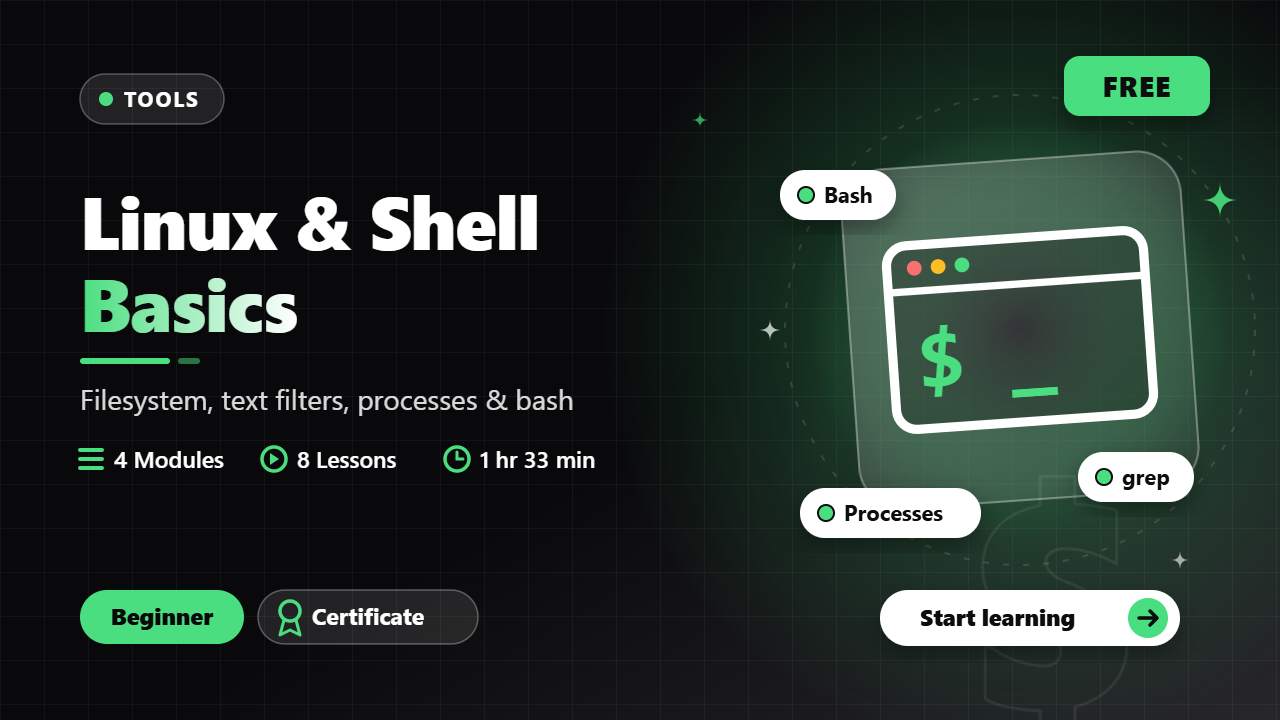
Linux & Shell Basics

Beginner · Tools

Navigate the filesystem, filter text like a pro, manage processes and write your first real bash scripts

4 modules8 lessons1 hr 33 min
FreeNew

SQL & Databases Mastery

Beginner · Databases

Query, join, aggregate, design and tune the database every placement test and production service depends on

4 modules8 lessons2 hr 10 min
FreeNew

Aptitude & Reasoning Mastery

Beginner · Career

Clear the OA round - the highest-frequency quant and reasoning topics from TCS, Infosys, Wipro and Capgemini, taught with the shortcuts that save minutes

4 modules8 lessons2 hr
FreeNew

Basic Electrical Engineering (BEE)

Beginner · Electrical Engineering

DC circuits, network theorems, AC fundamentals and machines — the universal first-year subject, exam-ready

4 modules8 lessons1 hr 23 min
FreeNew

Free · lifetime access

Candidate Verified

Real interview questions verified by candidates placed at top tech firms.

View-Only PDF Security

Watermarked licensed PDFs, server-side unlock checks — no raw download paths.

Honest, Server-Driven

Pricing, coupons and unlocks are verified by the backend — no bypasses.

TieEdu — Learn, Evolve, Develop

© 2026 TieEdu Technologies. All rights reserved.

Built for placement season within India

Visitors who arrive through an email link are remembered with a first-party cookie so we can see which pages that mail led them to — never the other way round, never on login or admin pages, and never for anonymous visitors. Every email carries a one-click unsubscribe that stops both mailings and tracking.