Courses
AI & Data ScienceFree

Python for AI

Forty lessons from your first print() to a shipped end-to-end notebook — Python, NumPy, pandas, honest charts, core statistics and your first scikit-learn models

1 learner10 modules40 lessons12 hrBeginner
Beginner
40 lessons in 10 modules
11h 45m of material
40 challenges
English audio
English captions
Certificate on completion

What you'll get

  • Verifiable certificate

  • XP on the leaderboard

Your certificate

TTieEduCertificate of Completionawarded toyour namePython for AIFoundation Tier

Preview of the certificate this course issues. Yours will carry your name, score and a verifiable serial — signed, not editable.

What you will build

Ship an end-to-end Python-for-AI notebook

Produce one Jupyter/Colab notebook on a dataset of your choice (a built-in sklearn dataset such as iris or diabetes, or any CSV you cleaned yourself) that a stranger can run top to bottom on a fresh kernel. The eight sections are fixed: (1) the question — one sentence naming the decision, target and features; (2) load + inspect — the six-readout ritual; (3) clean + report — every fill, coercion and drop counted in a printed report dict; (4) EDA — at least three charts (distribution, relationship, category), each with a one-line takeaway and honest axes; (5) split FIRST — train_test_split with random_state=42, plus stratify for classification, before any learned preprocessing; (6) baseline — DummyRegressor/DummyClassifier scored and recorded; (7) the real model — LinearRegression for a regression target or DecisionTreeClassifier for classification, fit on train only; (8) compare + confess + save — baseline vs model metrics side by side in domain units, the confusion matrix or a residual summary, a limitations paragraph naming test size, single-split uncertainty, suspected confounds and one concrete forbidden use, and an output/ bundle (cleaned CSV, metrics.json, figures). No cell may depend on manual state.

You will submit: Link to a public Colab or GitHub notebook (anyone-with-link can view) that runs top to bottom without errors.

Getting Python Running: Interpreter, Scripts, Jupyter & Colab

What Python is, the three ways to run code, how to verify your install, and how notebook state differs from a script.

What you will learn
  • Verify a Python 3 installation and start and exit the interactive interpreter
  • Write, save and run a .py script from the terminal
  • Run multi-cell code in Google Colab or Jupyter and explain how kernel state works
  • Choose the right runner (interpreter, script or notebook) for a given task

Day one of every Python class splits into two groups: the students who spend the evening fighting an installer, and the one who opens colab.research.google.com and runs their first line in forty seconds. Nothing in this course is learned by reading alone — you learn Python by running Python. Ten minutes to a working runner removes the only real barrier between you and every lesson after this one.

What Python actually is. Python is a high-level programming language. When you run a .py file, Python first translates your source into an intermediate form called bytecode, and then a Python runtime executes that bytecode. You never see or manage that translation — there is no separate "compile" step to remember. Edit, run, read the result, edit again. That fast iteration loop is a large part of why Python won data science and AI: when your work is exploration, the speed of the edit-run cycle often matters more than the raw speed of the executed code.

Three ways to run code — and they behave differently:

  1. The interpreter (REPL). Type python3 at a terminal (often just python on Windows) and you get a >>> prompt. Every line you type is evaluated immediately and its result printed. exit() returns you to the shell. Perfect for checking what one line does — terrible for anything longer than a screen, because the session ends when you close it.
  2. A script. A plain text file ending in .py holding a sequence of statements. You run it with python3 myfile.py, it executes top to bottom exactly once, prints whatever you print, and exits. State does not survive: every run starts fresh. This is how real programs are delivered.
  3. A notebook (Jupyter or Google Colab). Code is split into cells you run one at a time, in any order you like, in a kernel — a long-lived process that keeps every variable alive between cells. Cell 1 can load a dataset; cells 2–50 can explore it without reloading. Notebooks are the native format of AI work: almost every ML tutorial, Kaggle analysis and research result you meet is a notebook. Their power (experiment interactively) is also their trap (state can go stale — see below).

Which one when. Interpreter: a one-line question ("does this sort work?"). Script: anything you will keep, re-run, or hand to someone else. Notebook: data analysis, charts, teaching, and learning — which is why this course shows notebook cells alongside runnable scripts.

Installing, honestly. Only Python 3 matters — Python 2 reached end of life in 2020 and any python2 you find is a museum piece. Current versions are 3.11 through 3.13; any of them runs every example in this course. On Windows, install from python.org and tick "Add python.exe to PATH" during setup — skipping that box is the single most common reason the python command mysteriously does not exist later. macOS and most Linux distributions already ship python3. Google Colab needs no installation at all: a free Linux machine in your browser with NumPy, pandas, matplotlib and much of the AI stack preloaded. The catch is ownership: a Colab machine is rented RAM tied to your session, so anything you want to keep must be saved to Google Drive or downloaded before you disconnect.

Three runners, three behaviours
RunnerBest forState between runsHow you start it
InterpreterTesting one lineDies when you exitpython3 at the terminal
Script (.py)Anything you keep or shipNone — fresh every runpython3 myfile.py
Notebook (Jupyter/Colab)Analysis, AI work, teachingAll variables live in the kernelBrowser tab or jupyter notebook
Zero-install first hour

If anything about installing fails, open incognito chrome and go to colab.research.google.com → File → New notebook. You get a working Python 3 session with the AI stack in under a minute. Come back to local installs after Lesson 3.

python versus python3

On macOS and Linux the bare command python is either missing or points at Python 2, which will reject modern syntax with confusing errors. Get in the habit of typing python3 (and verifying python3 --version). On Windows the installed command is python.

From a blank machine to a running program
You have never run Python on this computer. Reach the point where you can (a) check the version, (b) run a one-liner, (c) run a saved script, and (d) run a notebook cell — and know which output belongs to which method.
  1. 1

    1. Check what is installed

    In a terminal, ask Python for its version. Any 3.x answer means you are ready; a "command not found" means install first (or just use Colab).

    python3 --version
    # Windows: python --version
    # Expected: Python 3.12.7
  2. 2

    2. Talk to the interpreter

    Start the interpreter, evaluate two lines, then leave. The >>> prompt means Python is waiting for one statement at a time.

    python3
    >>> print(3 * 14)
    42
    >>> exit()
  3. 3

    3. Run a saved script

    Put this in a file named hello.py in a folder you know, then run it by path. Output is plain — no prompts, no In/Out numbers.

    # hello.py
    name = "Ada"
    print("Hello,", name)
    
    # then in the terminal:
    python3 hello.py
  4. 4

    4. Run a notebook cell

    Open colab.research.google.com → New notebook. Paste into the first cell and press the play button (or Shift+Enter). A second cell can print(x) — the kernel kept x alive. Close the tab and both are gone.

    x = 6 * 7
    print(x)   # 42

Solution

Version check gives Python 3.x; the interpreter answered 42 for one line; hello.py printed "Hello, Ada" as a one-shot script; the notebook kept x across cells. Recognise each output style — prompt-led (interpreter), plain (script), numbered cells (notebook) — because confusing them is how people misread where a result came from.

Set up and record your runner

Open Colab (or your local install) and run three cells in order: (1) print your Python version with import sys; print(sys.version), (2) create a variable student = "your name" and print it, (3) print the variable again after re-running cell 1. Note exactly what persists and what does not.

Hint: Re-running cell 1 does not touch student, because cells share one kernel — but restarting the runtime (Runtime → Restart runtime) wipes everything.

Common mistakes
  • Typing python and getting "command not found" or an ancient Python 2 banner

    Use python3 explicitly and confirm with python3 --version. On Windows, reinstall from python.org with the "Add to PATH" checkbox ticked.

  • Expecting notebook variables to survive closing the browser

    The kernel is rented memory tied to your session. Save code cells (they are safe in the file); re-run them after a restart to rebuild state.

  • Running python myfile.py from a folder that does not contain the file

    The error "can't open file ... myfile.py" is a path problem, not a Python problem. cd to the folder first, or pass the real path: python3 scripts/hello.py.

  • Assuming everything you run shares one environment

    Your terminal, your local Jupyter kernel and a Colab session are three separate Pythons with separate packages. This is exactly why Module 3 covers virtual environments.

Exam / interview angle

What is the difference between a compiled and an interpreted language, and where does Python actually sit?

A compiled language (C, C++, Rust) translates the whole source into machine code ahead of time, producing a separate executable you then run. An interpreted language executes the source (or an intermediate form of it) statement by statement at run time. Python is a hybrid: it compiles source to bytecode — cached in a __pycache__ folder — and executes that bytecode on a virtual machine, so there is no separate build step but also no direct machine-code translation. The trade-off is rapid edit-run iteration and portability across platforms versus lower raw execution speed, which is precisely the gap libraries like NumPy close later in this course.

Source: Standard opening question in Python placement rounds and university unit tests.

Lesson summary
  • Python runs three ways: interpreter (one line at a time), script (top to bottom once), notebook (cells with live kernel state).
  • Running Python compiles to bytecode behind the scenes — no separate compile step, fast edit-run loop.
  • Only Python 3 matters; verify with python3 --version and beware the python versus python3 naming trap.
  • Colab gives you a free, preloaded environment in the browser — but its state and files are session-bound.
  • Notebook state lives in the kernel: persistent until you restart, unreliable if you run cells out of order.
What you will be able to do

  • Set up Python and run code confidently in scripts, the REPL and Jupyter/Colab notebooks
  • Use variables, f-strings and the four basic types without type-confusion bugs
  • Choose and manipulate lists, tuples, dicts and sets — including comprehensions — with the right mutation semantics
  • Write small functions with clean parameters, returns, scope and docstrings; install packages with pip inside a venv
  • Drive confident branches and loops, and read a traceback to fix the actual error
  • Use NumPy arrays, vectorized operations, slicing, broadcasting and seeded randomness on real numeric data
  • Load, inspect, select, filter, join and group pandas DataFrames — and handle missing data with a reported strategy
  • Build honest matplotlib/seaborn charts matched to the question, and save figures and outputs reproducibly
  • Read CSV/JSON files and APIs safely, and package cleaning into a re-runnable pipeline with a defect report
  • Compute core statistics and train/evaluate a first scikit-learn model against a baseline with an honest train/test split

About this course

This course is built around one gap: every AI syllabus starts at "import pandas", and everyone who falls behind fell behind in week one — in Python itself. Ten modules close that gap in order, each one earning the next.

Module 1 gets code running three ways (interpreter, script, notebook) and fixes the mental model: names point at values, input() is always text, and the four basic types behave differently in arithmetic. Module 2 is the container toolkit — lists, tuples, dicts and sets — chosen by mutability and lookup needs rather than habit. Module 3 turns scripts into functions: parameters, defaults done right (the mutable-default trap included), scope, imports, pip and virtual environments. Module 4 is control flow and the error skills that separate people who ship from people who stall: honest branches, loops that finish, tracebacks read bottom-up, and a debug loop you can repeat. Module 5 crosses into NumPy — dtype and shape, vectorization that beats Python loops, fancy indexing, broadcasting and seeded randomness — the array literacy every model assumes.

Part II is the applied half. Module 6 is pandas: Series and DataFrame, the six-readout inspection ritual, loc versus iloc, merges, groupby and missing-data strategies that report what they did. Module 7 is seeing data without lying — matplotlib's object interface, matching chart type to question, subplots and seaborn, and the honesty rules (zero-based bars, disclosed log scales, takeaways in titles). Module 8 is real data work: CSV and JSON safely, APIs with timeouts and courtesy, a cleaning pipeline that returns (data, report), and saving figures and outputs so someone else can rerun you. Module 9 is the statistics every model sits on — mean, median, variance with the n − 1 correction, sampling intuition, correlation versus causation with real confounders, and outliers. Module 10 assembles everything into scikit-learn: the X/y contract, honest held-out evaluation, baselines you must beat, LinearRegression and a DecisionTree read against those baselines — and the capstone notebook that proves the whole chain end to end.

The exam/interview angle is threaded through every lesson, and the final exam draws fifteen questions from a thirty-question bank spanning all ten modules. The certificate is issued for the capstone notebook — a thing you can open, run and defend — not for attendance.

Who this course is for

  • Engineering students of any branch who need Python for labs, projects or placements
  • Aspiring AI/ML/data-science learners told to "first learn Python" without a roadmap
  • Students preparing for placement Python rounds and aptitude-style coding questions
  • Anyone who knows a little Python but has never touched NumPy, pandas or scikit-learn

What you should know before you start

Anything here is assumed, not taught. If it is not on the list, the course explains it.

  • A browser (Google Colab needs zero install) or any computer that can install Python 3.9+
  • No prior programming experience assumed — Module 1 starts from zero
  • High-school algebra is enough for the statistics and NumPy sections

Questions before you start

How much time does Python for AI take?

The course is 10 modules and 40 lessons — about 12 hr of material in total. Lessons unlock in order, so the time it takes you depends on how much of each lesson you actually read.

Do I get a certificate?

Yes. Finish every lesson and a certificate is issued automatically. Its serial is public: anyone can check it at https://tieedu.com/verify without an account, and a revoked certificate stops verifying.

Is it really free?

Yes — this course is free, and there is nothing to buy to start it.

How is my progress tracked?

On the server, lesson by lesson. Time is credited at real-time speed and capped, so a lesson cannot be marked complete faster than it can be read. That is why the percentage survives a new device.

How do ratings work?

Only learners who finished the course can rate it, and the average shown is calculated from those ratings alone. A course nobody has finished yet carries no rating rather than a default one.

See all

AI Literacy for Everyone

Beginner · AI & Data Science

From "what is AI" to a toolkit you actually run — how the models work, how to prompt them, how to verify what comes back, and how to keep your name on work you can defend

10 modules40 lessons10 hr 31 min
FreeNew

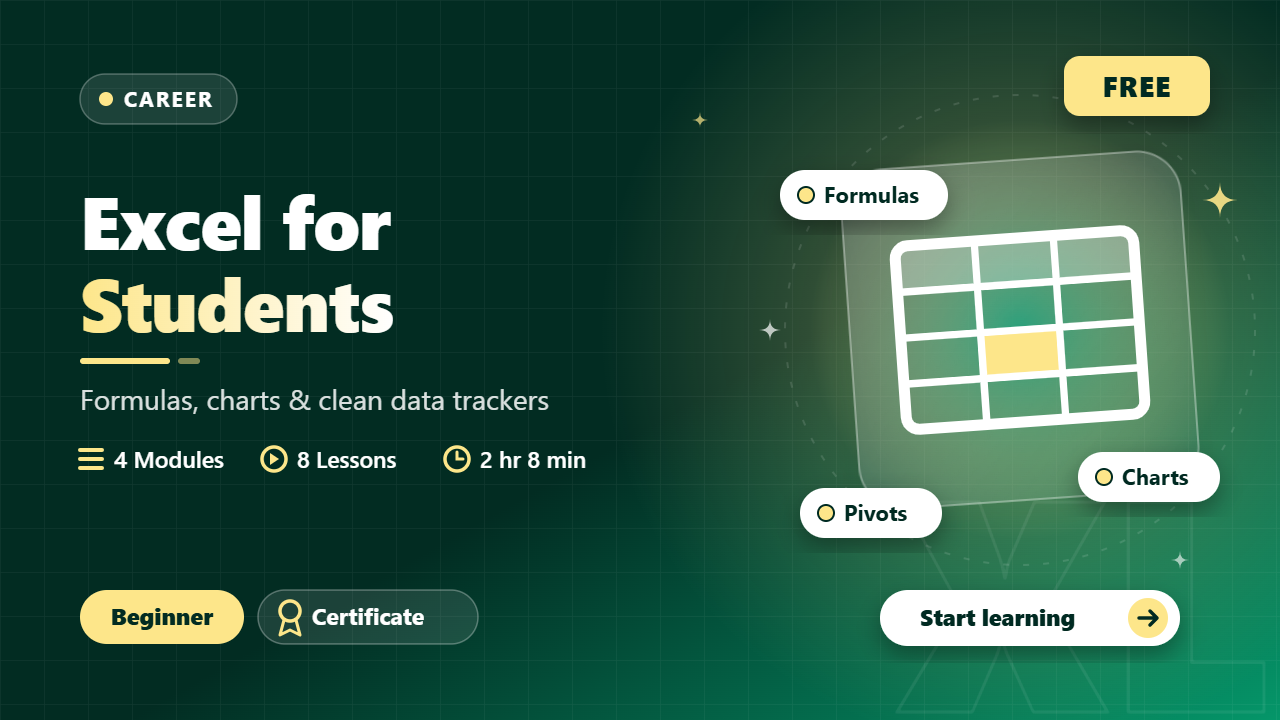
Excel for Students

Beginner · Career

Three hours from pasted data to a defensible tracker — formulas, charts and the clean-up pass that fixes other people's exports

2 learners4 modules8 lessons2 hr 8 min
FreeNew

Free · lifetime access

Candidate Verified

Real interview questions verified by candidates placed at top tech firms.

View-Only PDF Security

Watermarked licensed PDFs, server-side unlock checks — no raw download paths.

Honest, Server-Driven

Pricing, coupons and unlocks are verified by the backend — no bypasses.

TieEdu — Learn, Evolve, Develop

© 2026 TieEdu Technologies. All rights reserved.

Built for placement season within India

Visitors who arrive through an email link are remembered with a first-party cookie so we can see which pages that mail led them to — never the other way round, never on login or admin pages, and never for anonymous visitors. Every email carries a one-click unsubscribe that stops both mailings and tracking.